A photo for an upload form
Make a photo fit a form’s size limit, then drag it straight in.
Drip for Mac
Drag a file up to the top of your screen and Drip opens with the jobs that file needs, each one shown on your own file.
How it stays out of the way
Drag a photo into a browser upload box, an email or a Slack message and everything works the way it always has. Drip only wakes up when you bring a file up to the notch. Then a drop reaches out for it, and the notch pours open into a glass panel of choices.
No notch on your Mac? Drip opens from the top middle of the screen instead.
What you see
No guessing what a button will do. Hold the file over a choice and it plays out on that file before you let go.
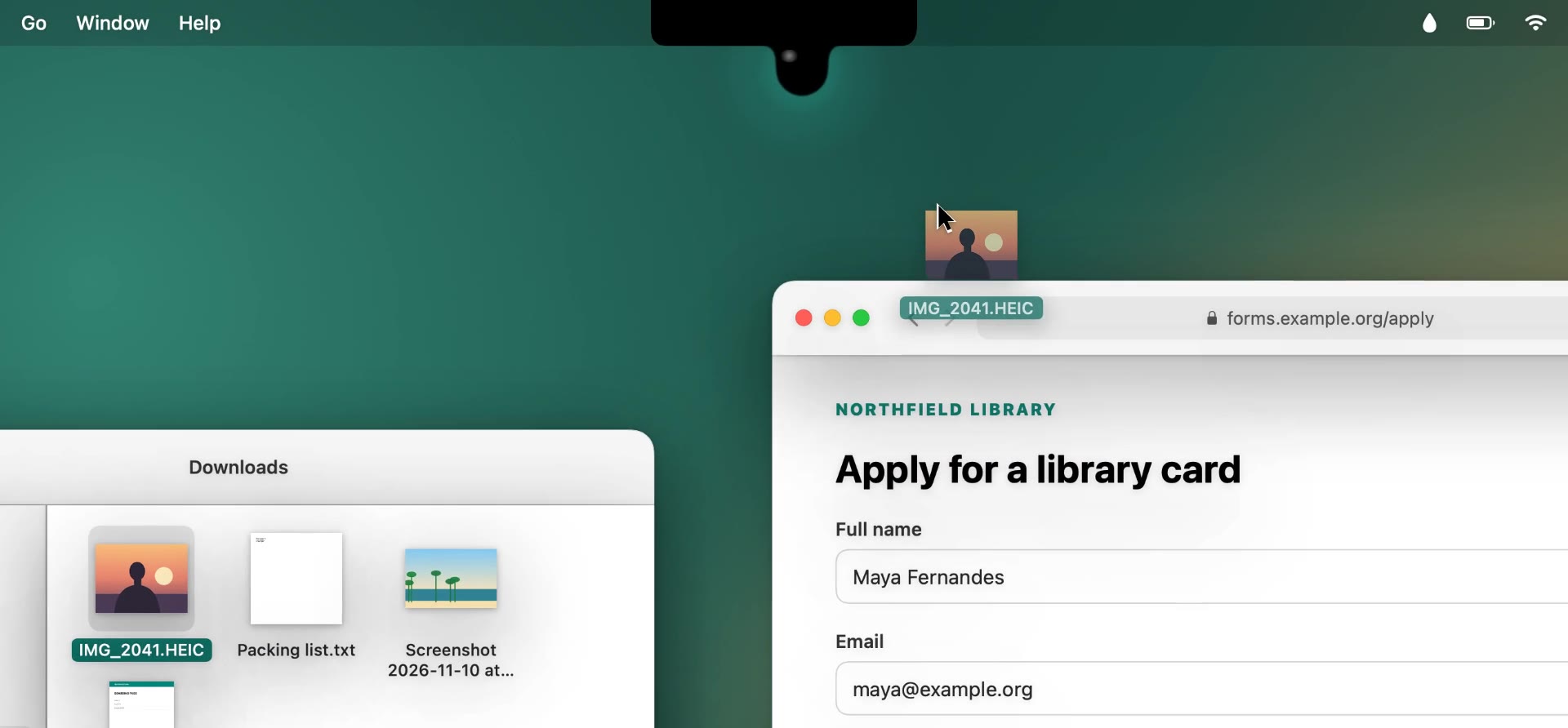
Bring a file close to the notch and a drop reaches out for it. Move it anywhere else and nothing happens.
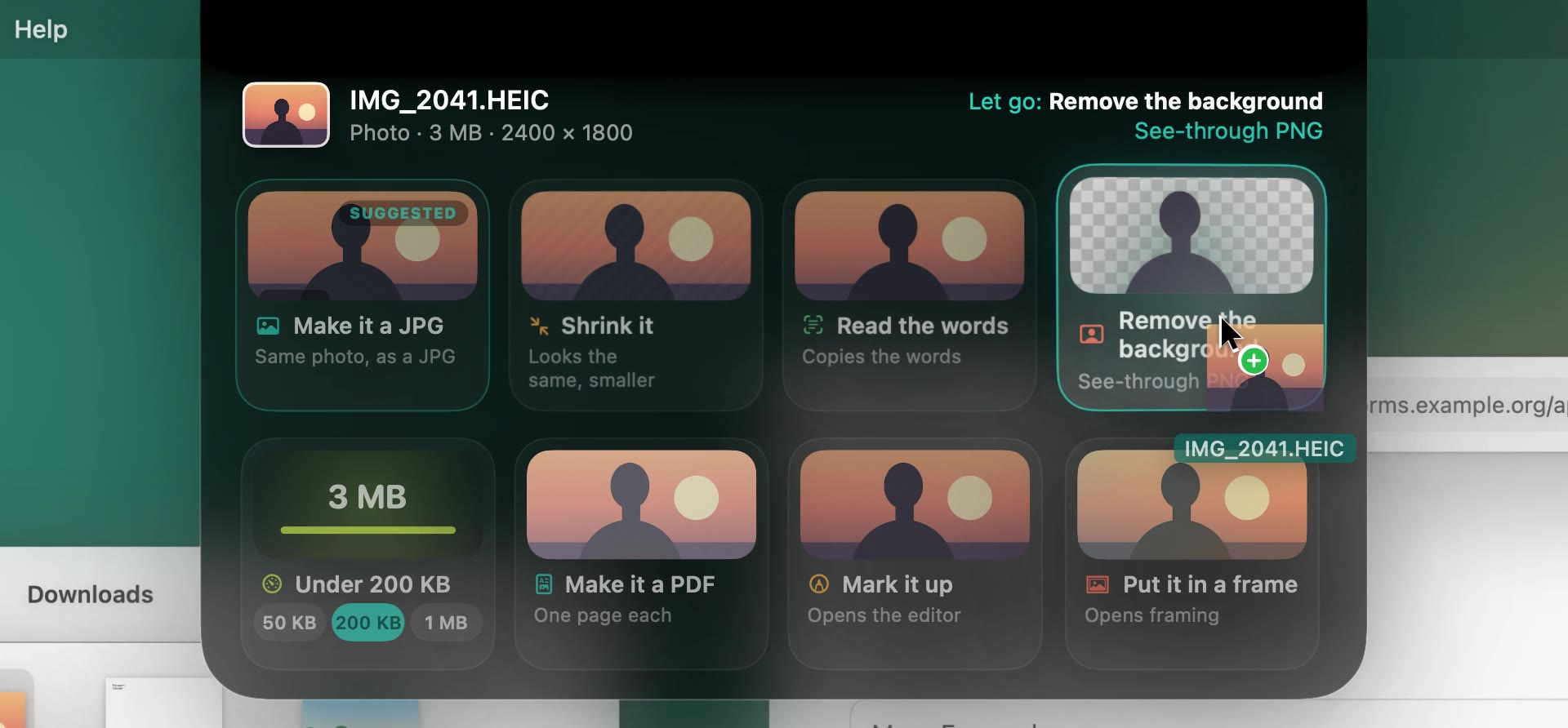
Hold the photo over Remove the background and the tile shows your photo with the background gone. The top line says what letting go will do.
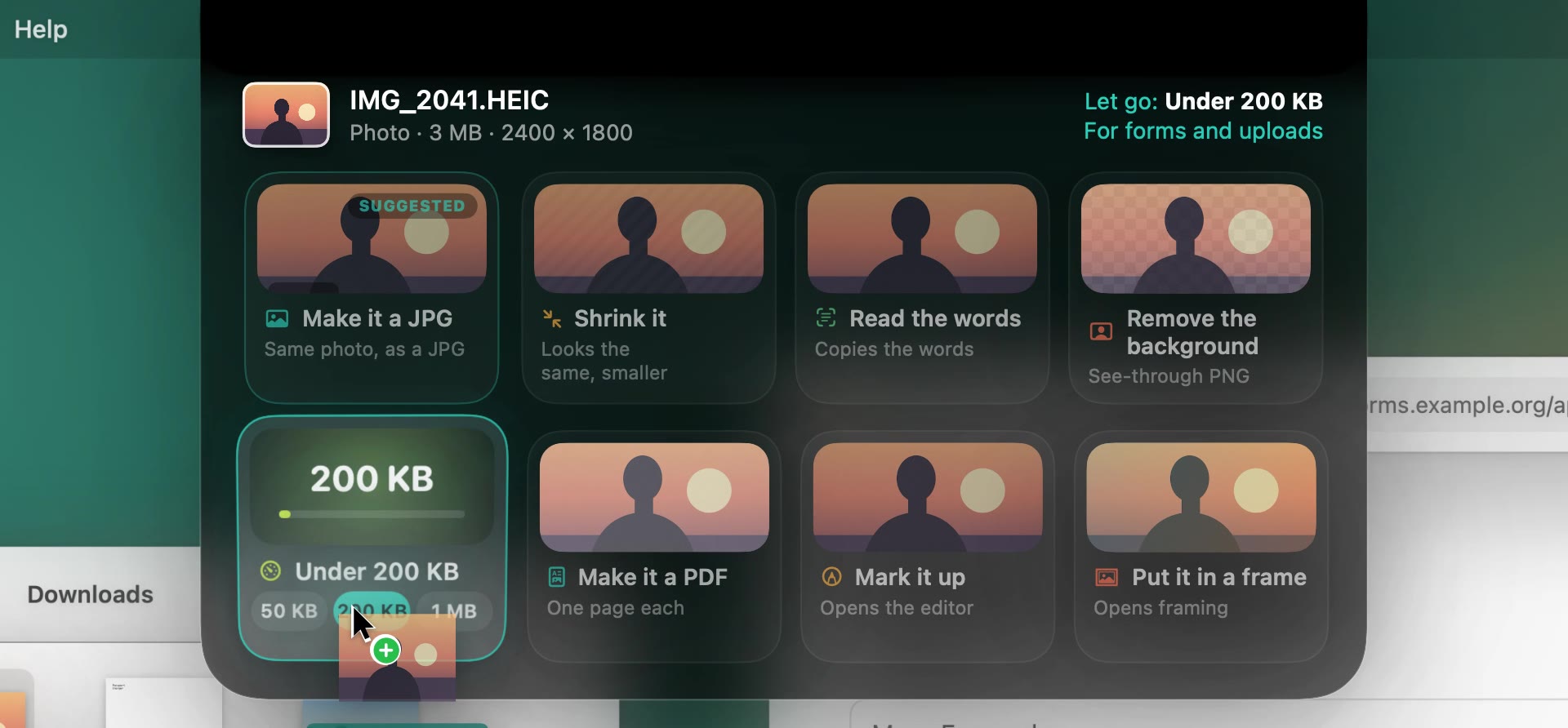
Over Under 200 KB, the size counts down from 3 MB. Drop it on 50 KB, 200 KB or 1 MB, whichever the form asks for.
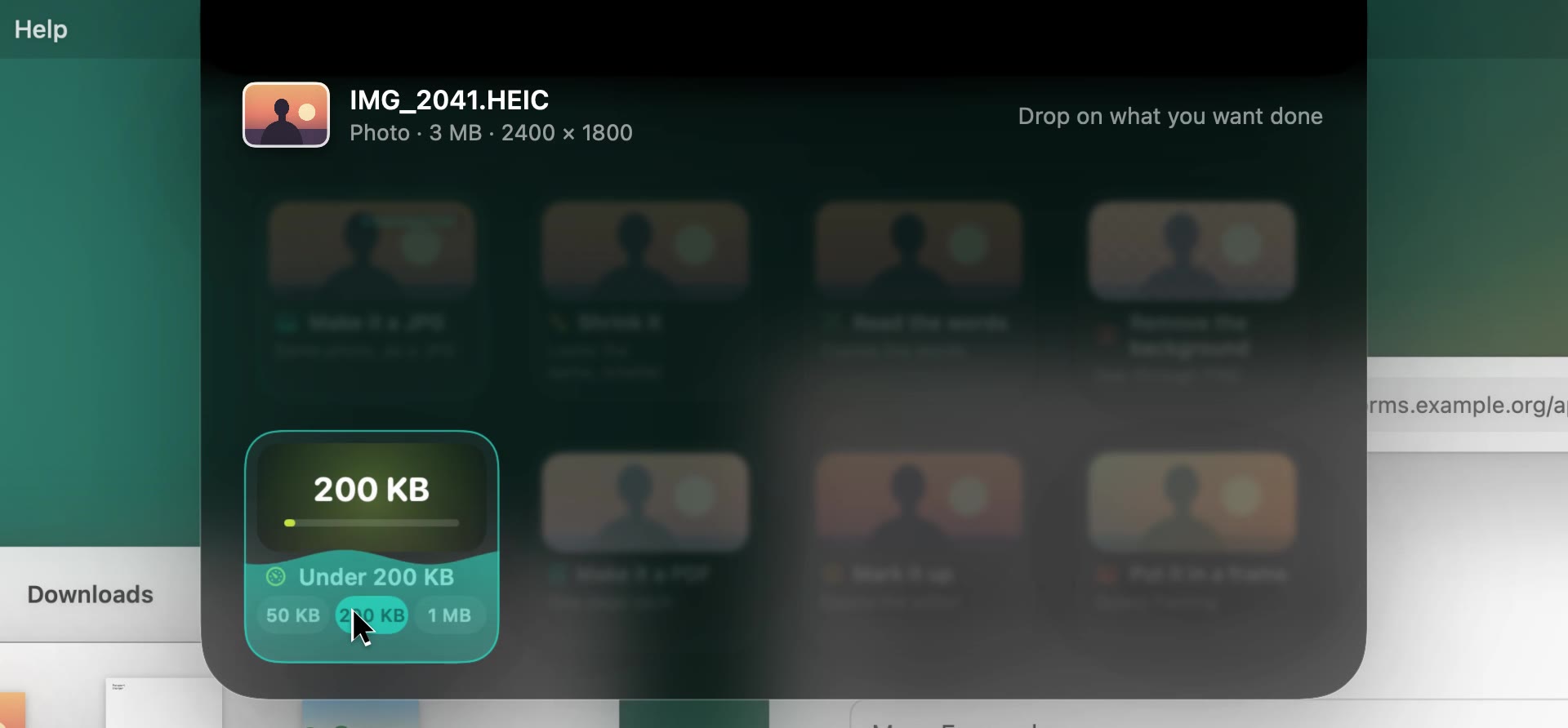
The choice fills up while Drip does the job. Your photo itself stays exactly as it was.
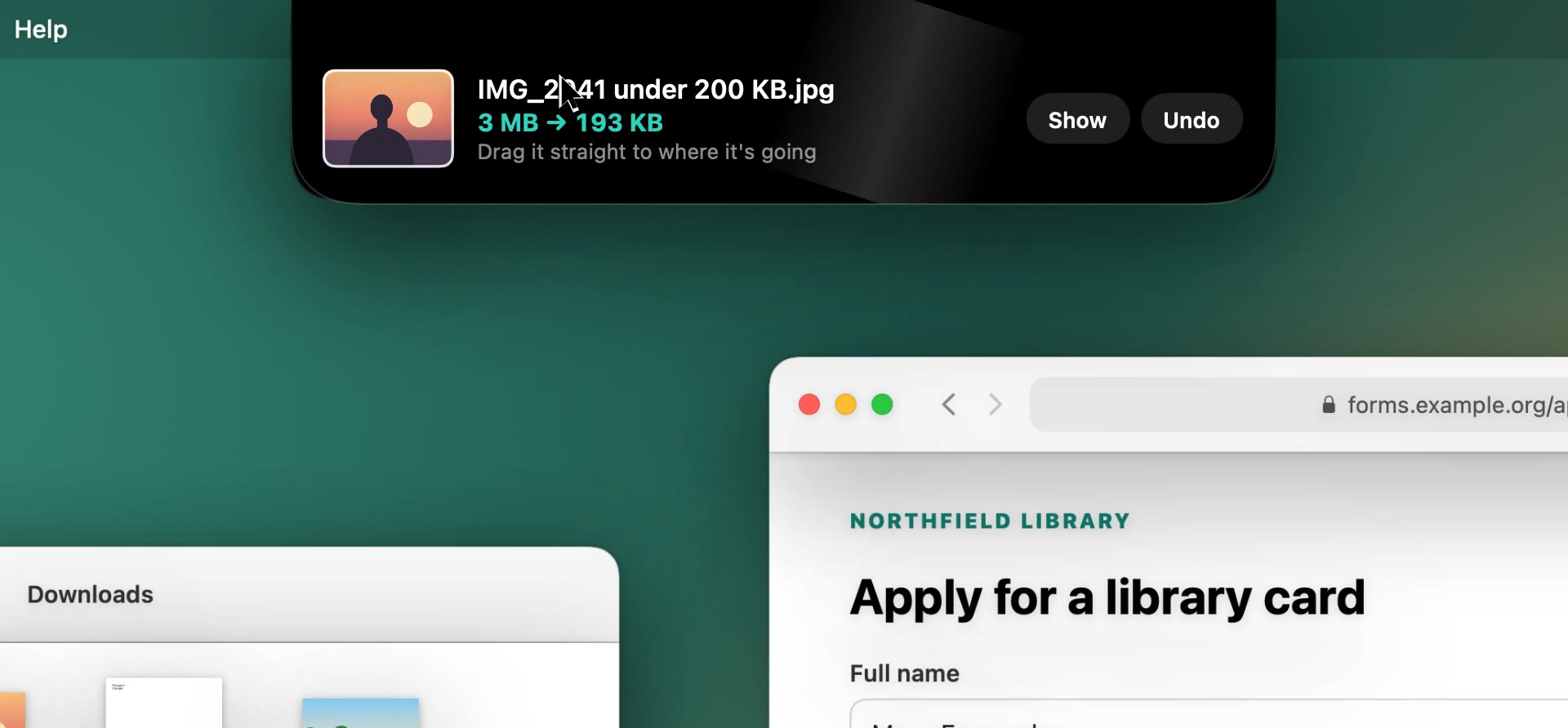
It waits in the notch, ready to drag straight into the form or email it's for. Show and Undo are right there.
What it does
Drip offers what fits the file you're holding: a photo gets photo jobs, a PDF gets PDF jobs. Here's the lot.
Tutorials
Four everyday jobs, start to finish. Click one to play it with sound.
Make a photo fit a form’s size limit, then drag it straight in.
Bring both up to the notch together and join them into one.
Make a video small enough to attach, without opening an editor.
Zip a folder at the notch, then drop the zip on a page that takes one file.
Private by design
Every job runs on the Mac itself. Nothing is uploaded, so your files never leave it.
Jobs that make something save a new file next to the original, with a name that says what changed.
Nothing to sign up for. The trial needs no card, and buying just emails you a licence key.
Price
Payments are handled by Dodo Payments, the merchant of record. They take the payment, handle any tax and email your licence key as soon as you've paid.
macOS 14 Sonoma or later · Apple silicon Macs
Download Drip and use all of it for 7 days, counted from the first time you open it. There's no account to make and no card to enter.
When you next bring a file to the notch, Drip says your free days are up and offers Buy or I have a key. Your files, and everything Drip made, stay where they are. Buy for $7.50, paste the key from your email, and it carries on.
One key works on one Mac at a time. To move it, choose Use on Another Mac in Drip's Settings on the old Mac, then enter the key on the new one. For two Macs at once, you'd need a second key.
Ask within 14 days of buying and you get a full refund, no questions asked. Reply to your receipt or write to [email protected]. The refund switches your key off. How refunds work
Yes. On a Mac without a notch, Drip opens from the top middle of the screen, where the notch would be.
Next to the original, with a name that says what changed, like “IMG_2041 under 200 KB.jpg”. Nothing is overwritten. Files that don't live in a folder of yours, like a photo dragged out of Photos or an attachment out of Mail, go to your Downloads folder.
Yes. Undo sits next to the finished file in the notch. It moves what Drip made to the Trash, or puts a moved file back where it was. The original was never changed in the first place.
No. Every job runs on your Mac and your files never leave it. Drip only goes online to check your licence, look for updates and keep track of the free trial. The Privacy page lists exactly what's sent.
Here's what Drip needs: macOS 14 Sonoma or later · Apple silicon Macs.
For one app, right-click the open notch and choose Not while I'm in… with that app's name. For a while, choose Take an Hour Off from the drop icon in the menu bar. To stop it altogether, untick Catch Files at the Notch in that menu, or choose Quit Drip.