
Convert a CSV to JSON or Excel on a Mac
Updated 20 November 20263 minute read
The short answer
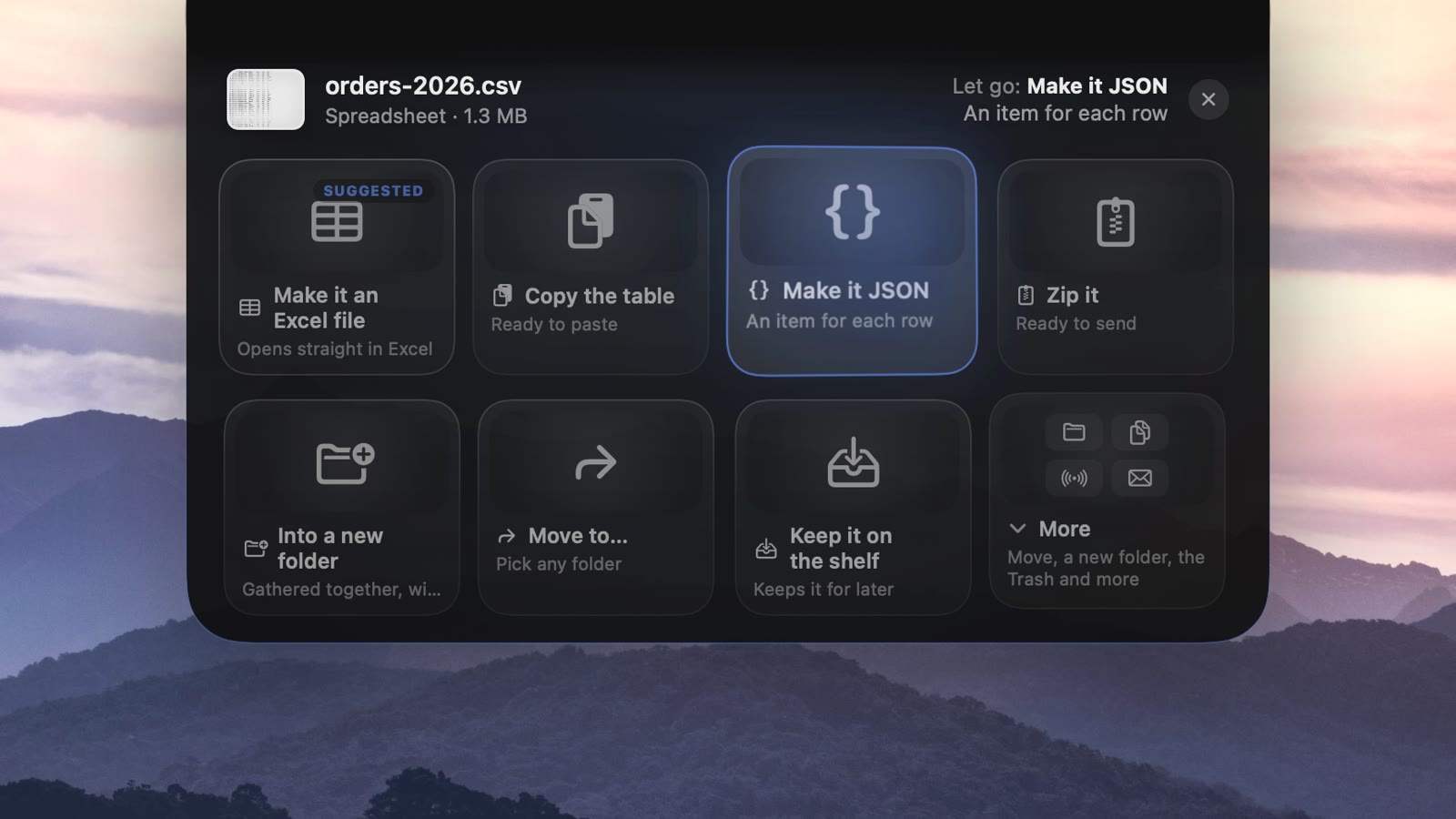
Drag the CSV up to the notch and let go on Make it JSON or Make it an Excel file. The new file appears beside the CSV. An Excel file gets Make it a CSV and Make it JSON the same way.
Steps
- Find the CSV. An export from a shop, a bank, an analytics tool or a database. Commas, semicolons and tabs between the columns all work, and so do .tsv files.
- Drag it up to the notch. The notch opens with the jobs for a table.
- Let go on Make it JSON. You get a list with one item for each row, named by the column headings. This 1.3 MB file of 18,420 rows became a 4.2 MB orders-2026.json.
- Or let go on Make it an Excel file. The same file became a 797 KB orders-2026.xlsx, in the standard .xlsx format that spreadsheet apps read.
What stays the same
- Numbers stay numbers: 1200.50 is a number in the JSON and in Excel. Codes with a leading zero, like 007, and very long IDs stay text, so nothing is rounded or cut short.
- Cells with commas, quotes or line breaks inside quotes come through whole.
- The CSV itself is left as it was. The new file goes beside it.
The other way round, and more
| An Excel file (.xlsx) | Make it a CSV, Make it JSON (one file for each sheet), Copy the table |
|---|---|
| A JSON list | Make it a CSV (one column for every name), Tidy it up, Minify it |
| Any of them | Copy the table puts the rows on the clipboard with tabs between cells, so they paste straight into a spreadsheet |
Good to know
- Big exports are fine. A 31 MB CSV of 100,000 rows becomes JSON in about 4 seconds and Excel in about 6. JSON and CSV files up to 300 MB, and Excel files up to 100 MB, get these jobs.
- Formulas, charts and colours aren’t carried over: Drip reads each cell as it shows on screen and writes plain cells.
- Older .xls files and Numbers files aren’t read yet. Open them in Numbers and export as .xlsx or CSV first.
Without Drip
Numbers opens a CSV and exports it as an Excel file (File › Export To › Excel). For JSON there’s nothing built into macOS: people paste the file into a website converter, which sends the data off your Mac. Drip does it on the Mac.