Join PDFs on a Mac
Updated 14 November 20263 minute read
The short answer
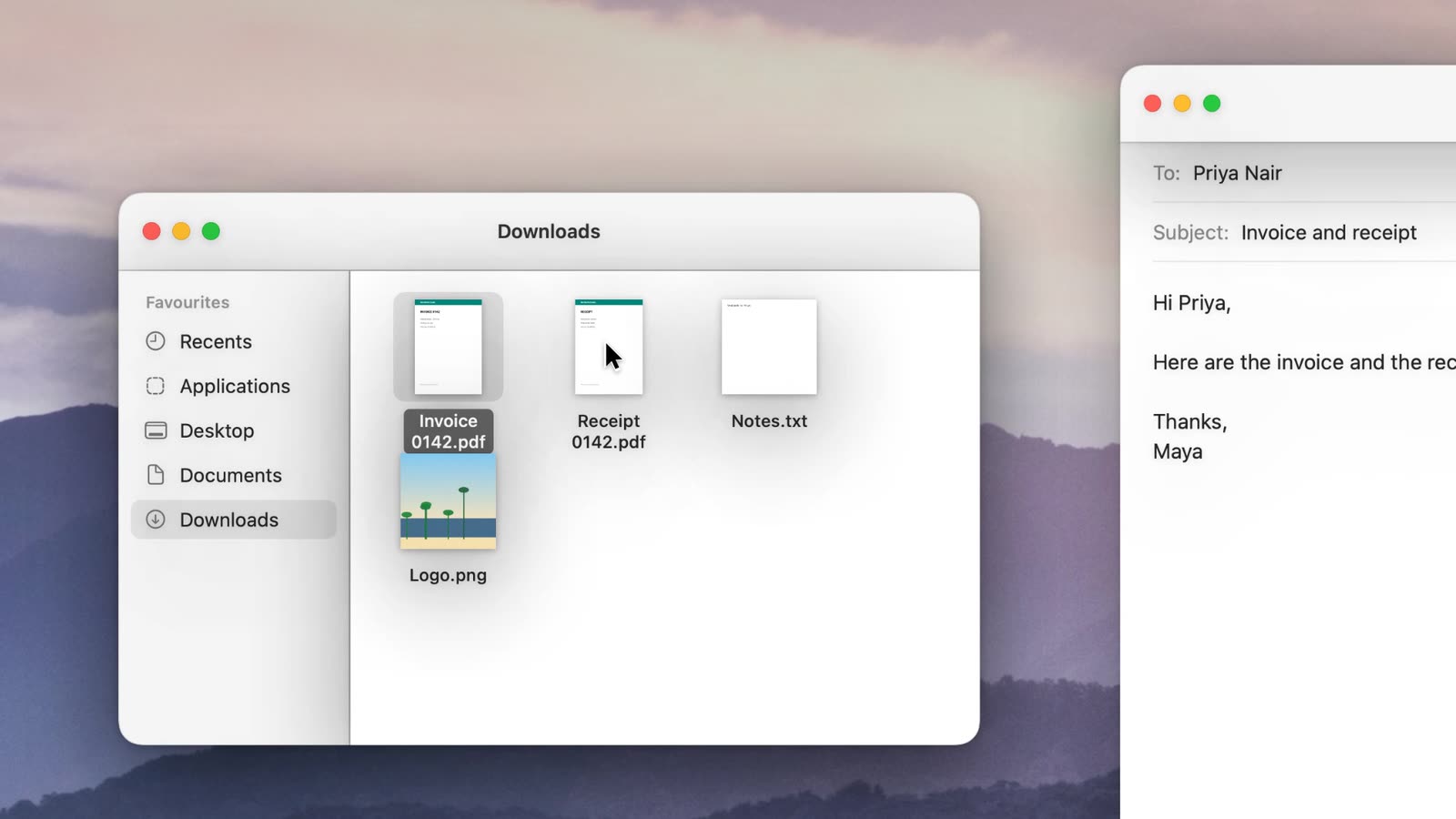
Select the PDFs in Finder, drag them up to the notch and let go on Join them. One new PDF, with every page, appears beside the first file, ready to drag into an email.
Steps
- Select the PDFs. In Finder, click the first, then Command-click each of the others.
- Drag them up to the notch. With two or more PDFs, Join them comes first.
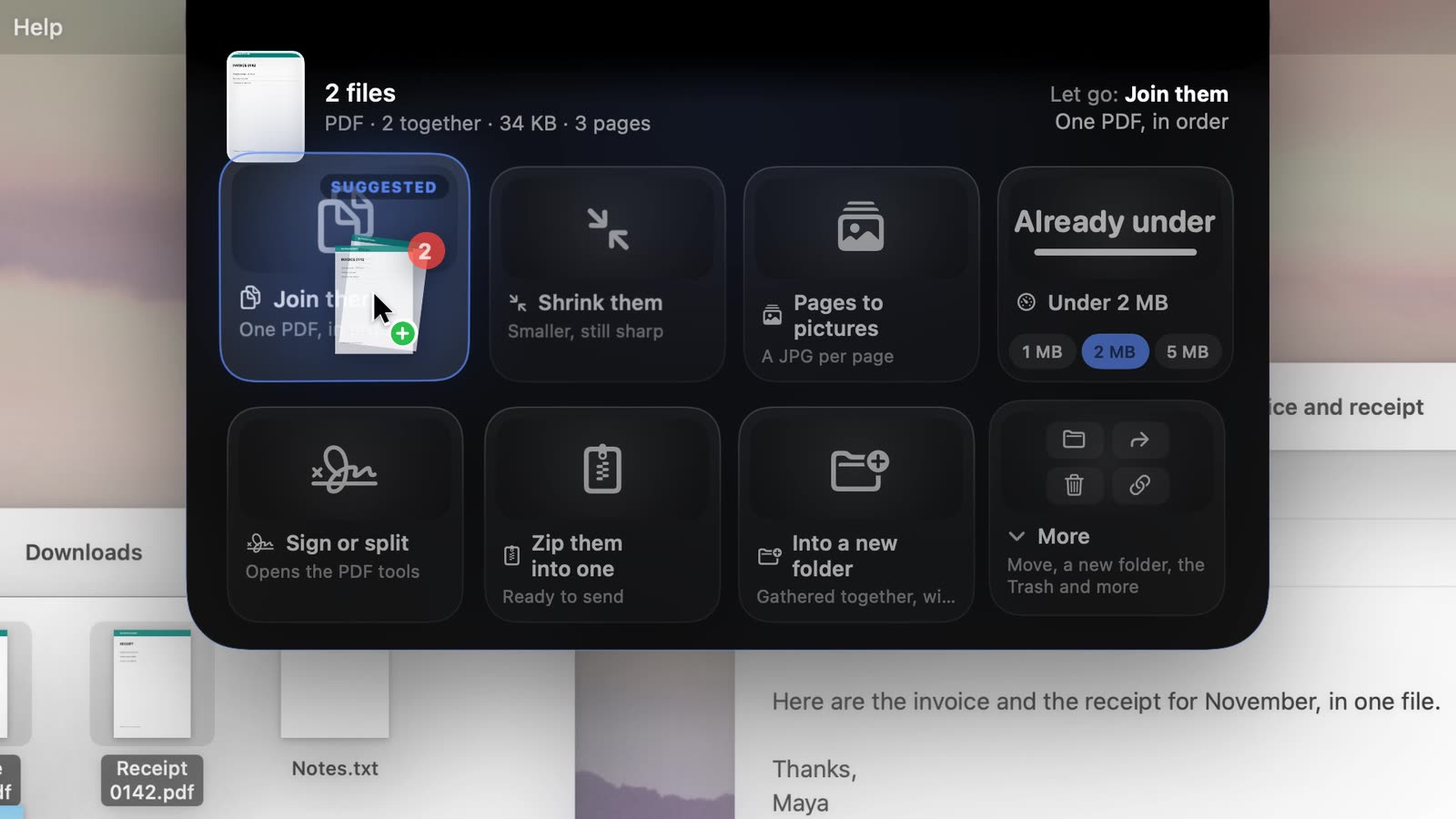
“Let go: Join them. One PDF, in order.” - Let go on Join them. A new PDF appears beside the first file, named after it, like Invoice 0142 joined.pdf. The notch says “2 PDFs → 1 PDF”.
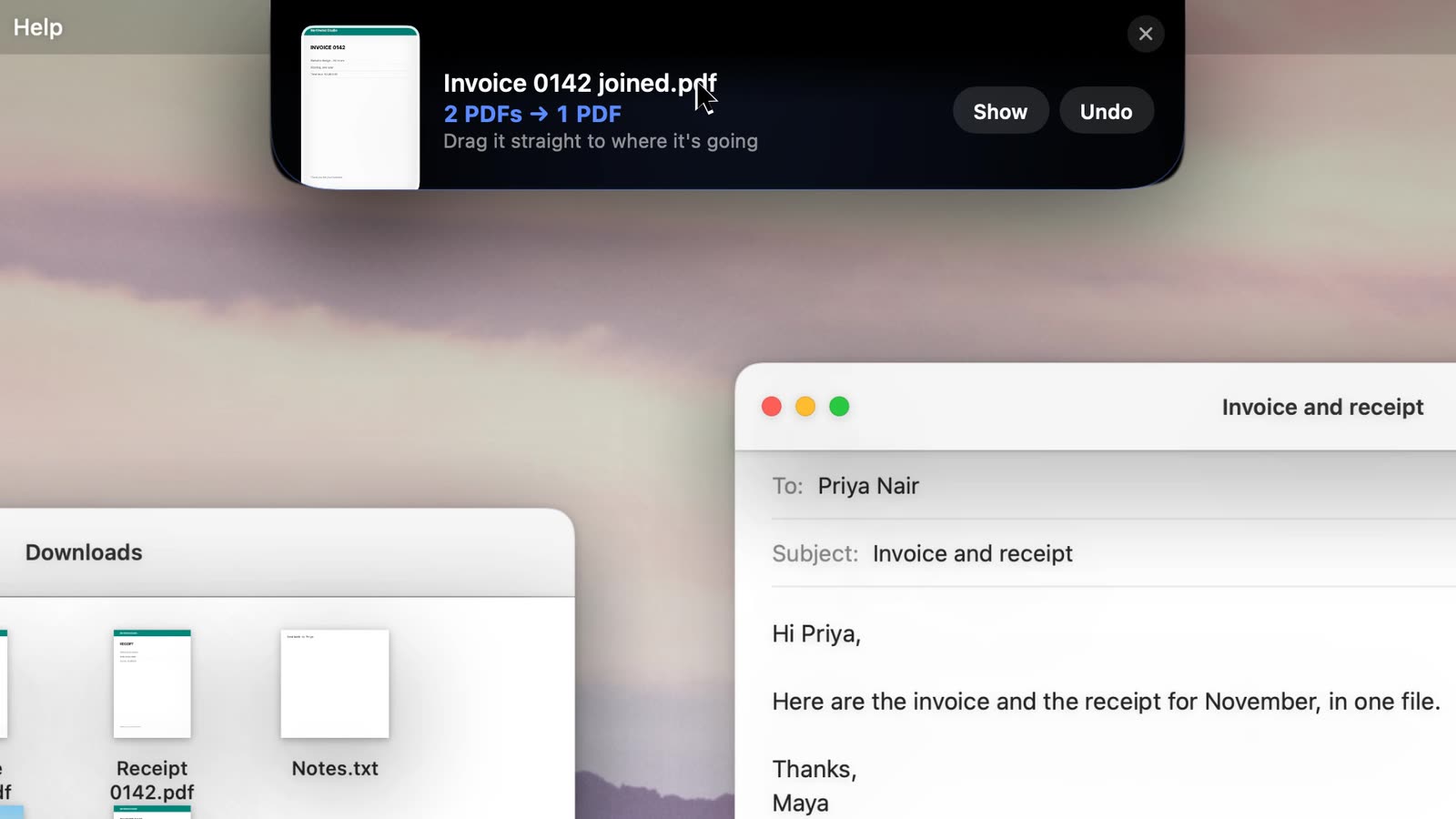
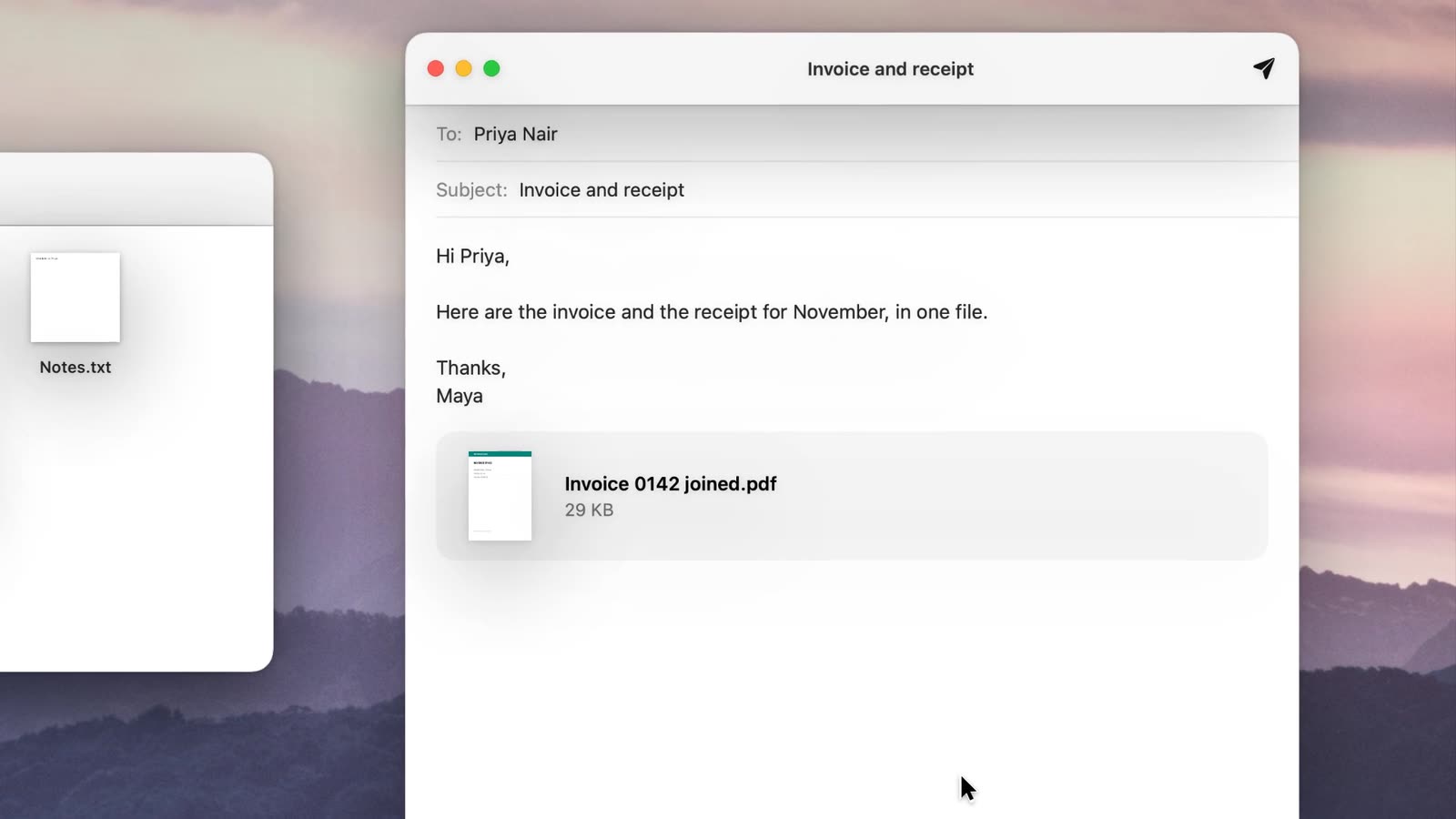
The originals stay as they were. - Drag it on. Drag the joined PDF from the notch straight into the email or the upload.
Good to know
- The order. Pages go in the order the files arrive in the drag. Press Space on the joined PDF to check it in Quick Look before you send it.
- To set the order yourself, let go on Sign or split instead. It opens Drip’s PDF Tools window with your files listed on its Merge page: drag the rows into order, then choose Merge and Save….
- Too big to send after joining? Drag the joined PDF back to the notch and let go on Under 2 MB (or 1 MB or 5 MB), or Shrink it.
- A locked PDF can’t be joined. Drip says which one won’t open; unlock it first.
- Pictures into one PDF: select the pictures and let go on Make one PDF, one page each.
Without Drip
Finder can do it too: select the PDFs, Control-click, and choose Quick Actions › Create PDF. Preview can as well: open the first PDF, show the thumbnails, and drag the other PDF into the sidebar. Drip does the same job from the notch and hands the result back for you to drag on.