Make a video small enough to email, on a Mac
Updated 14 November 20263 minute read
The short answer
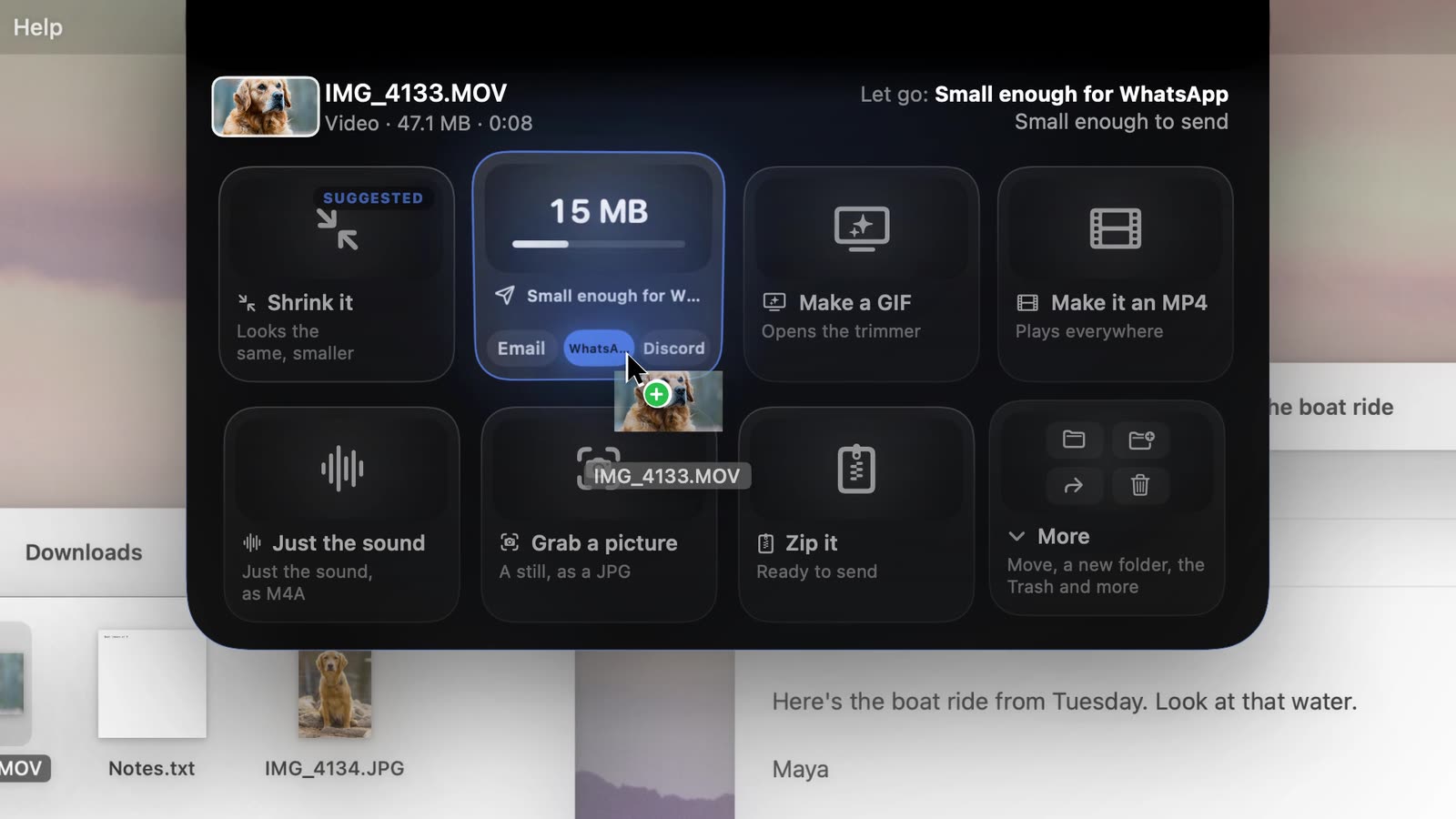
Drag the video up to the notch and let go on Small enough for email. Drip makes a new MP4 that fits, beside the original. The same tile has WhatsApp and Discord sizes.
Steps
- Find the video. From an iPhone, a camera or a screen recording: anything your Mac plays.
- Drag it up to the notch.
- Point at Small enough for email. Along the tile’s foot are Email, WhatsApp and Discord. Move along them to choose.
- Let go. Videos take a moment: the tile fills as it works, and longer videos take longer. Then the new file comes back, named like IMG_4133 for email.mp4.
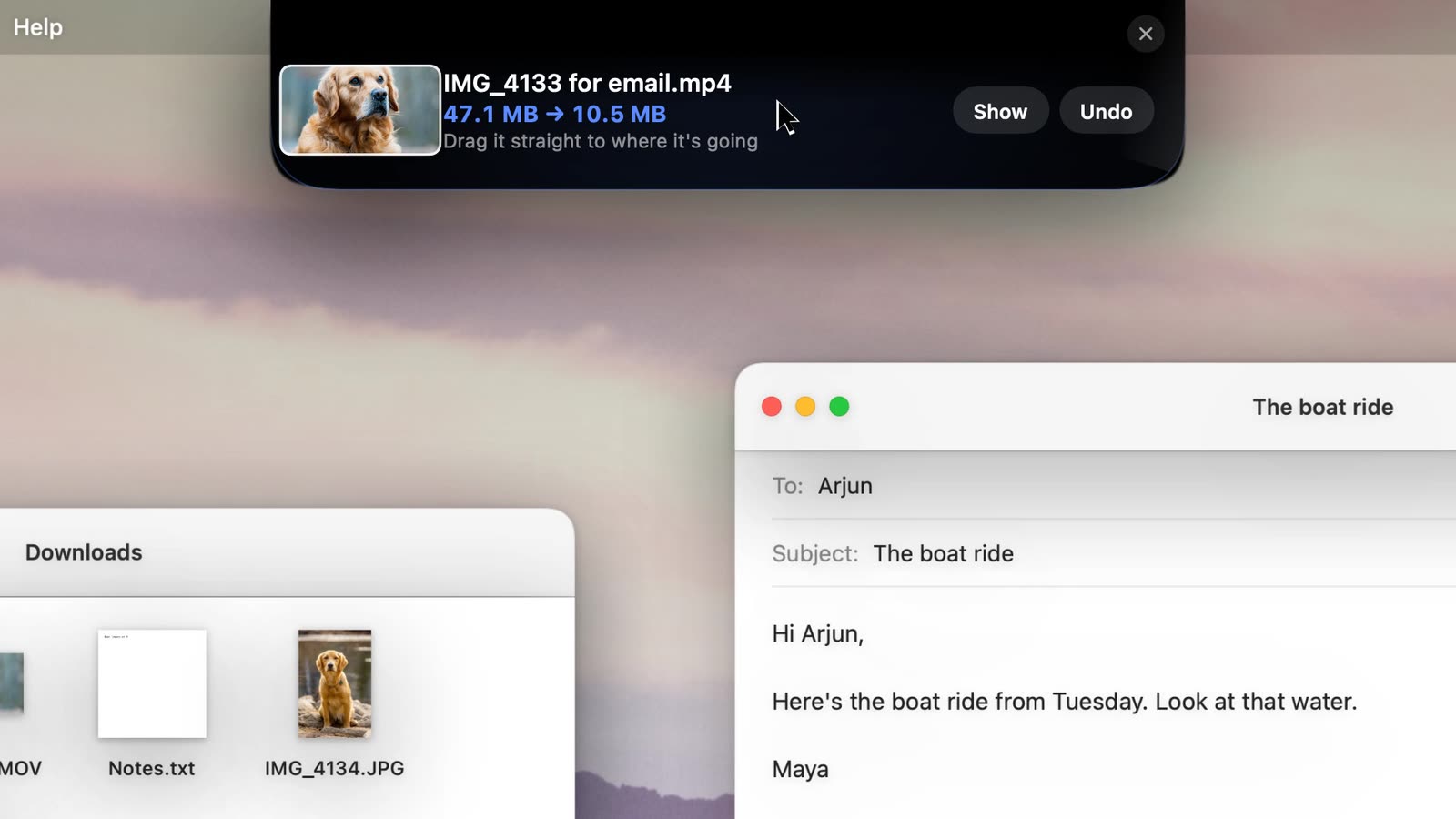
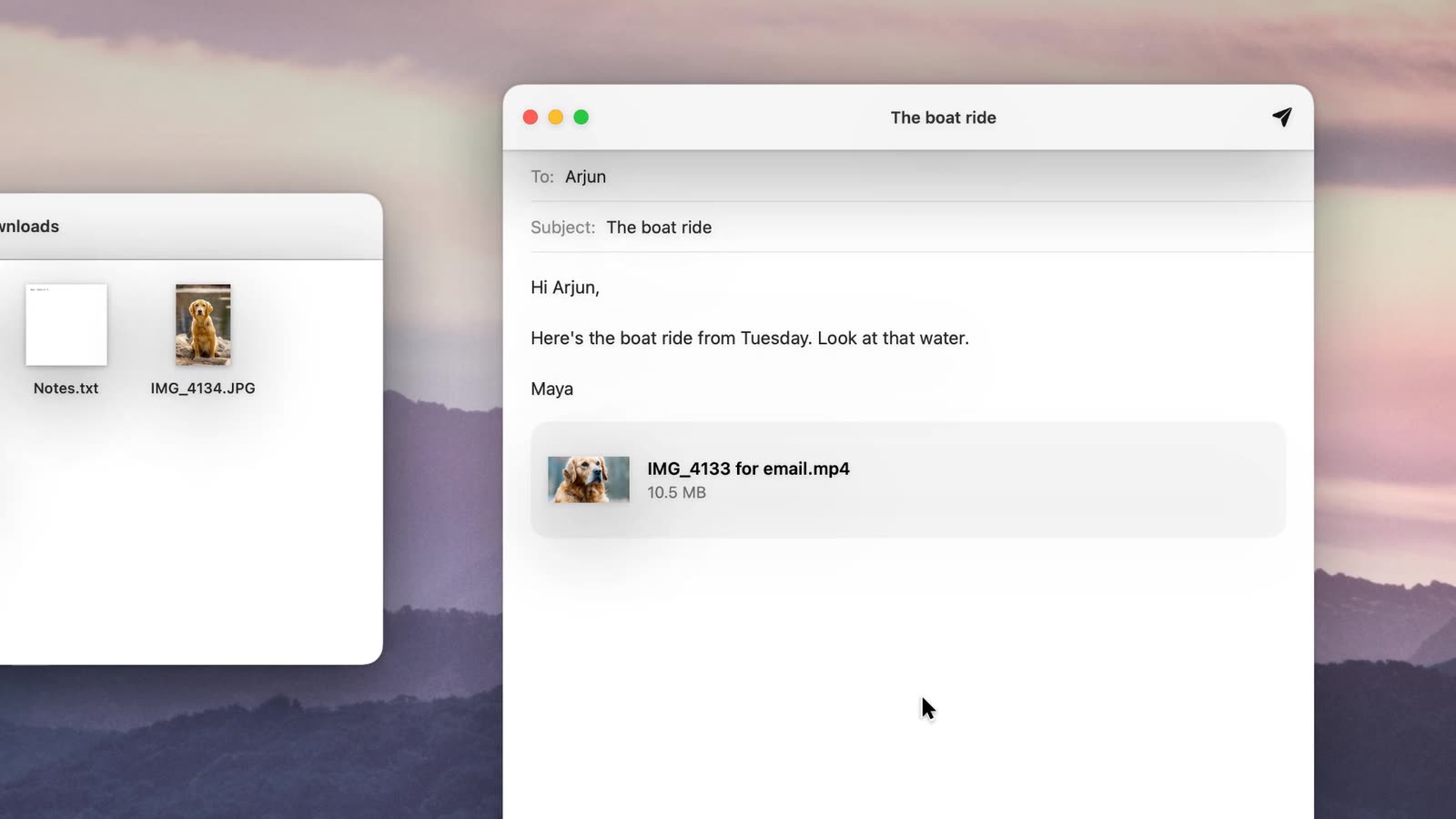
47.1 MB → 10.5 MB, as an MP4. - Drag it into the email.
The sizes
| Under 18 MB, below the usual 20 to 25 MB limit | |
| Under 15 MB | |
| Discord | Under 9 MB, for the free upload limit |
Good to know
- The original stays as it was. The new file is an MP4, which plays on phones, Windows and the web.
- Long videos have to give up more quality to fit. If it comes out too soft, trim it first: let go on Make a GIF to open the trimmer, switch it to MP4, set a size limit and export just the part you need.
- No size limit to meet? Shrink it keeps it looking the same, smaller.
- Several videos: drag them together and each gets its own new file.
Without Drip
QuickTime Player can export a smaller copy: File › Export As › 720p or 480p, then check the size. For a long video, Apple Mail’s Mail Drop sends a link instead of the file. Drip aims at the size you need, so there’s no guessing.